Unleash Your Sega CD Collection on Steam Deck: A Comprehensive Guide
The Sega CD, or Mega CD, expanded the Sega Genesis/Megadrive, offering CD-based gaming with enhanced visuals and audio. While not a massive commercial success, it remains a nostalgic gem. This guide helps you experience the classic Sega CD titles on your Steam Deck using EmuDeck.
Updated January 9, 2025: This guide now includes Decky Loader and Power Tools for optimal performance, as recommended by EmuDeck developers, plus troubleshooting for post-Steam Deck update issues.
Pre-Installation Steps:
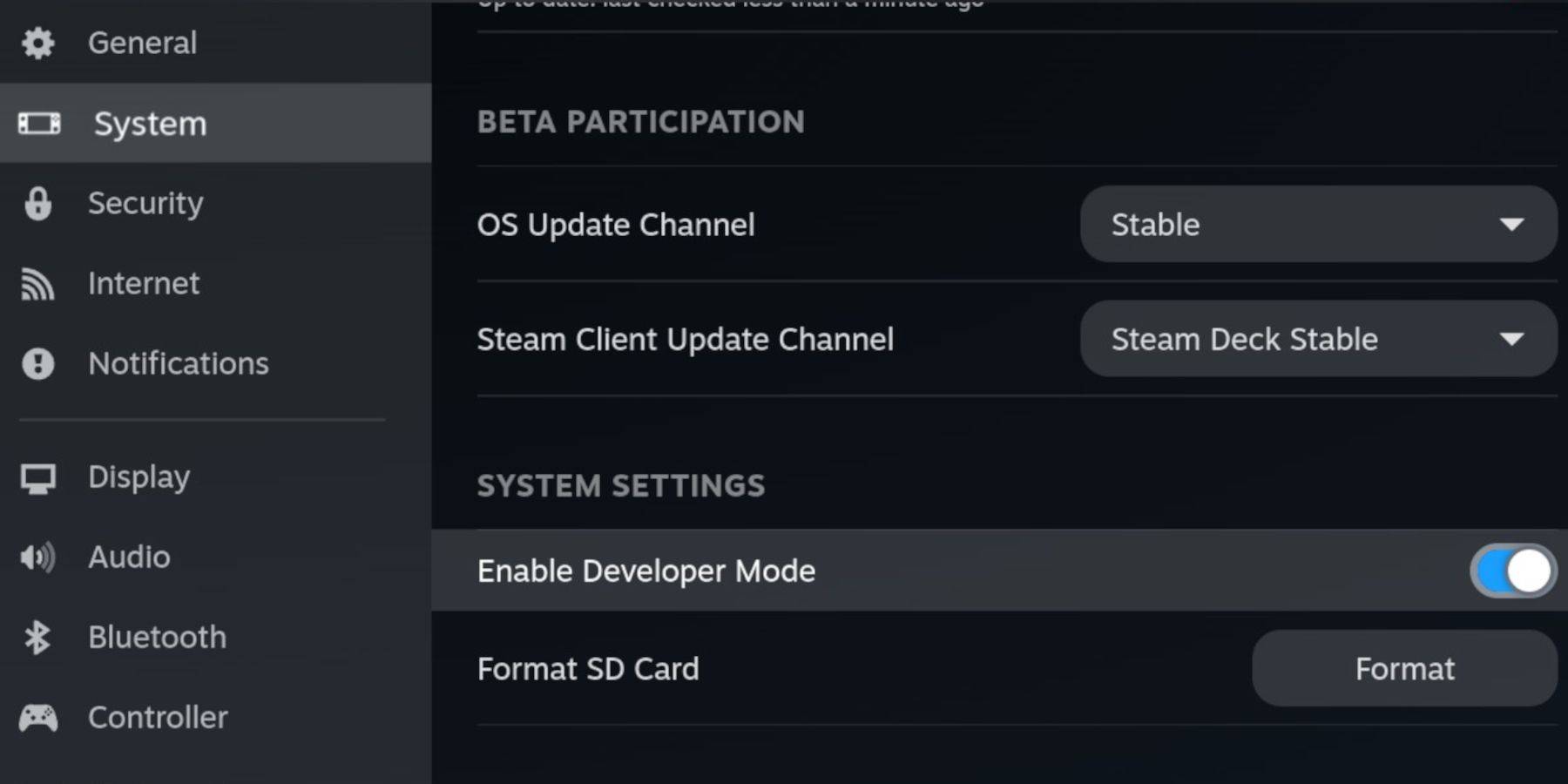 Before installing EmuDeck, enable Developer Mode and CEF Remote Debugging for compatibility.
- Power on your Steam Deck.
- Access the Steam Menu (Steam button).
- Navigate to System > Developer Mode and enable it.
- Open the Developer menu and enable CEF Remote Debugging.
- Access the Power menu (Steam button) and switch to Desktop Mode.
Essential Requirements:
- A fast A2 microSD card for EmuDeck and games. Format this card on your Steam Deck.
- Legally obtained Sega CD ROMs and BIOS files.
- (Optional but recommended) Keyboard and mouse for easier file management.
SD Card Formatting:
- Insert your microSD card.
- Access the Steam Menu > Storage.
- Select "Format SD Card."
Installing EmuDeck:
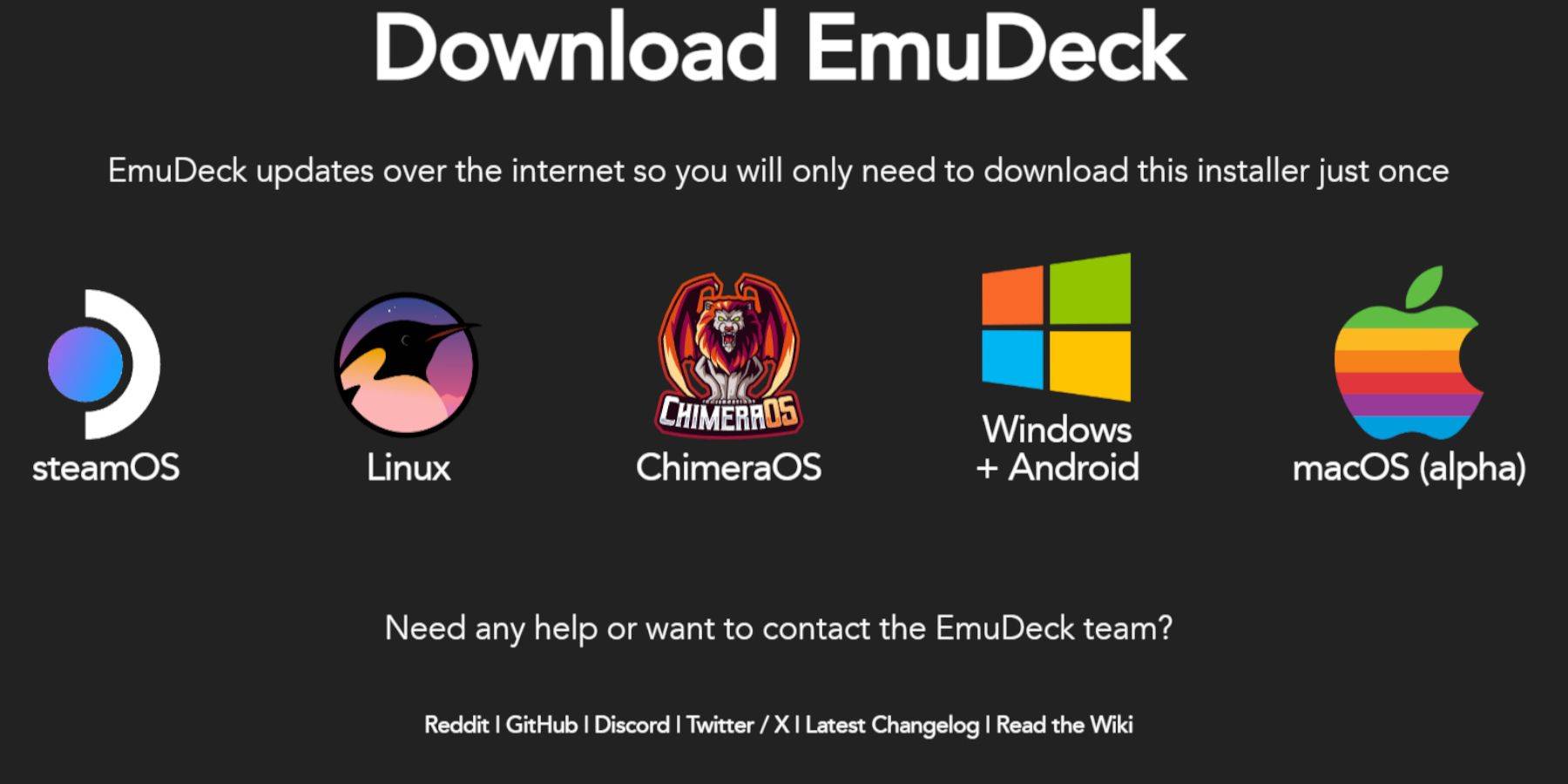
- Access the Steam Menu and switch to Desktop Mode.
- Download a browser (from the Discovery Store), then download EmuDeck, selecting the SteamOS version.
- Run the installer, choosing "Custom" installation.
- Select your SD card and Steam Deck.
- Choose RetroArch, MelonDS, Steam ROM Manager, and Emulation Station (or select all emulators).
- Complete the installation by selecting "Finalize."
Transferring Sega CD Files:

BIOS Files:
- Open the Dolphin File Browser (Desktop Mode).
- Navigate to your SD card (Primary).
- Go to the "Emulation" > "BIOS" folder and transfer your BIOS files.
Sega CD ROMs:
- Navigate to your SD card (Primary) > "Emulation" > "ROMS."
- Open the "segaCD" or "megaCD" folder and transfer your ROMs.
Adding ROMs with Steam ROM Manager:
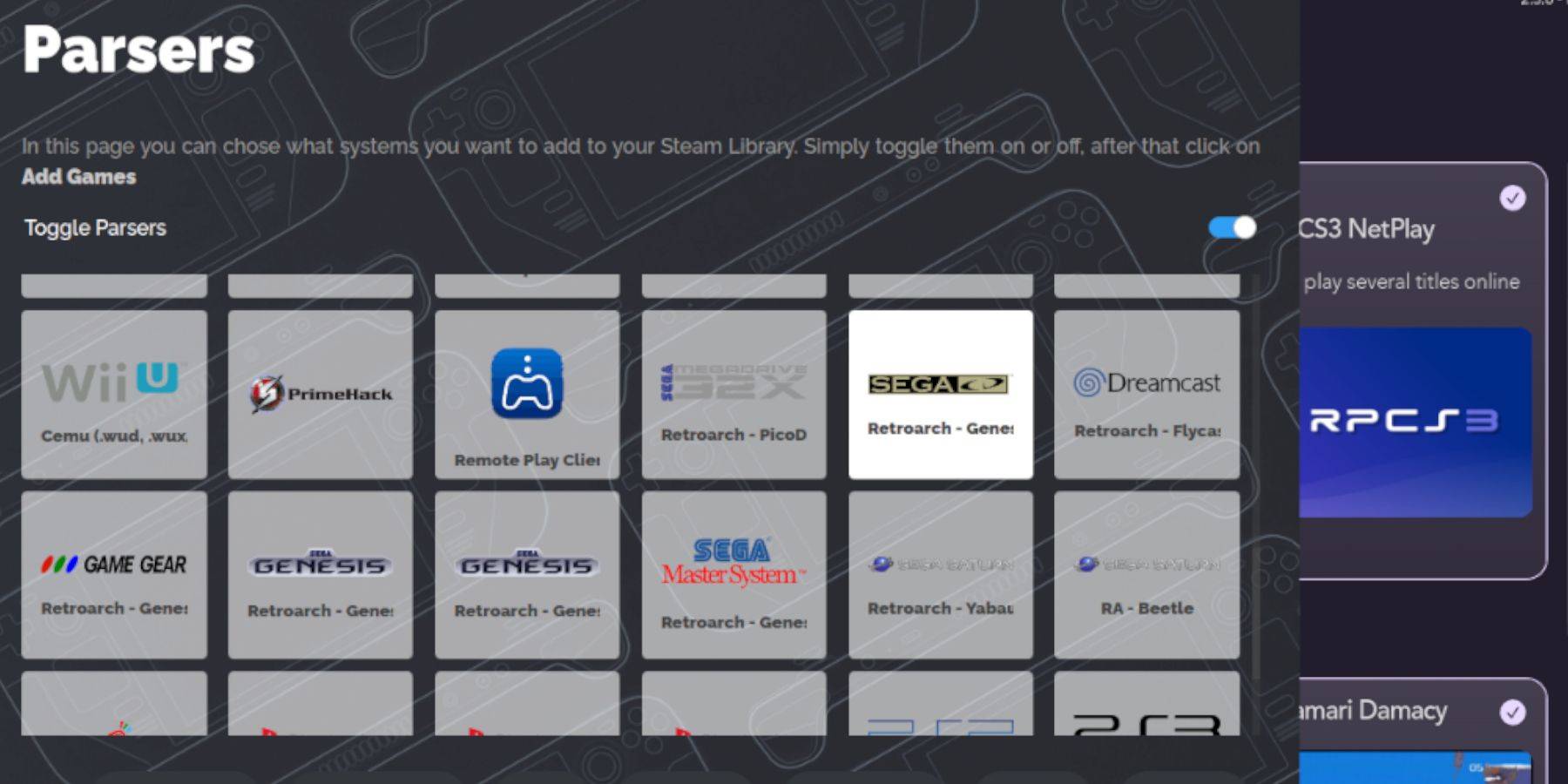
- Launch EmuDeck and open Steam ROM Manager.
- Click "Next," then select the Sega CD entry.
- Click "Add Games" and "Parse." Steam ROM Manager will prepare your games and artwork.
Resolving Missing Covers:
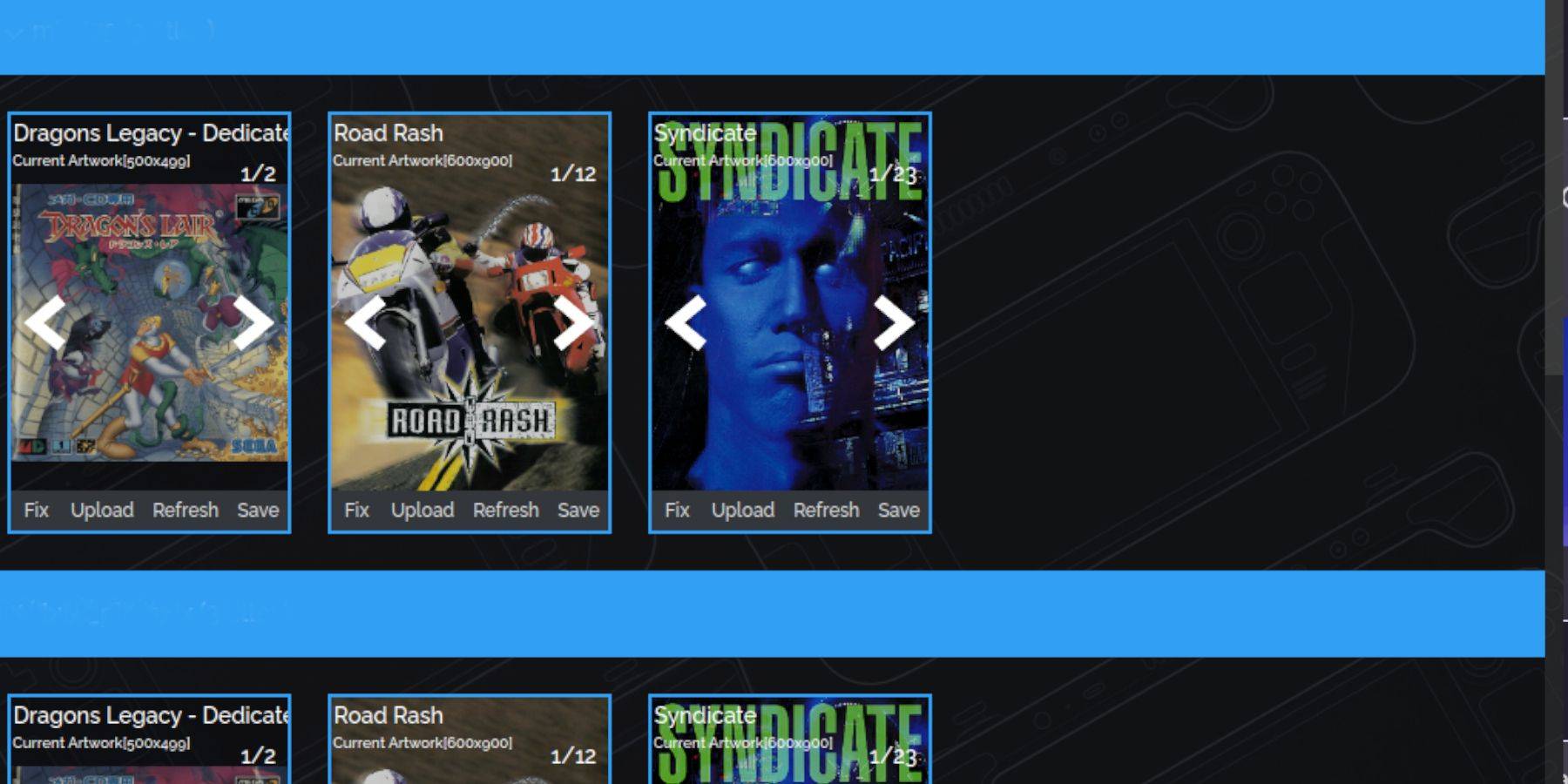
If covers are missing:
- Select "Fix."
- Search for the game title.
- Choose a cover and click "Save and Close."
Manually Adding Covers:
Use a Google Image search to find the cover art. In Steam ROM Manager, click "Upload," select the image, and click "Save and Close."
Playing Your Sega CD Games:
- Access the Steam Menu > Library > Collections.
- Open the Sega CD folder to launch your games.
Using Emulation Station:
Emulation Station (if installed) provides a superior library interface, especially for multi-disc games.
- Access the Steam Menu > Library > Non-Steam.
- Launch Emulation Station. Use the menu to scrape metadata (TheGamesDB is recommended).
Installing Decky Loader:
- (Optional, but recommended for Power Tools) Switch to Desktop Mode.
- Download Decky Loader from its GitHub page.
- Run the installer and choose "Recommended Install."
- Restart your Steam Deck in Gaming Mode.
Installing and Configuring Power Tools:
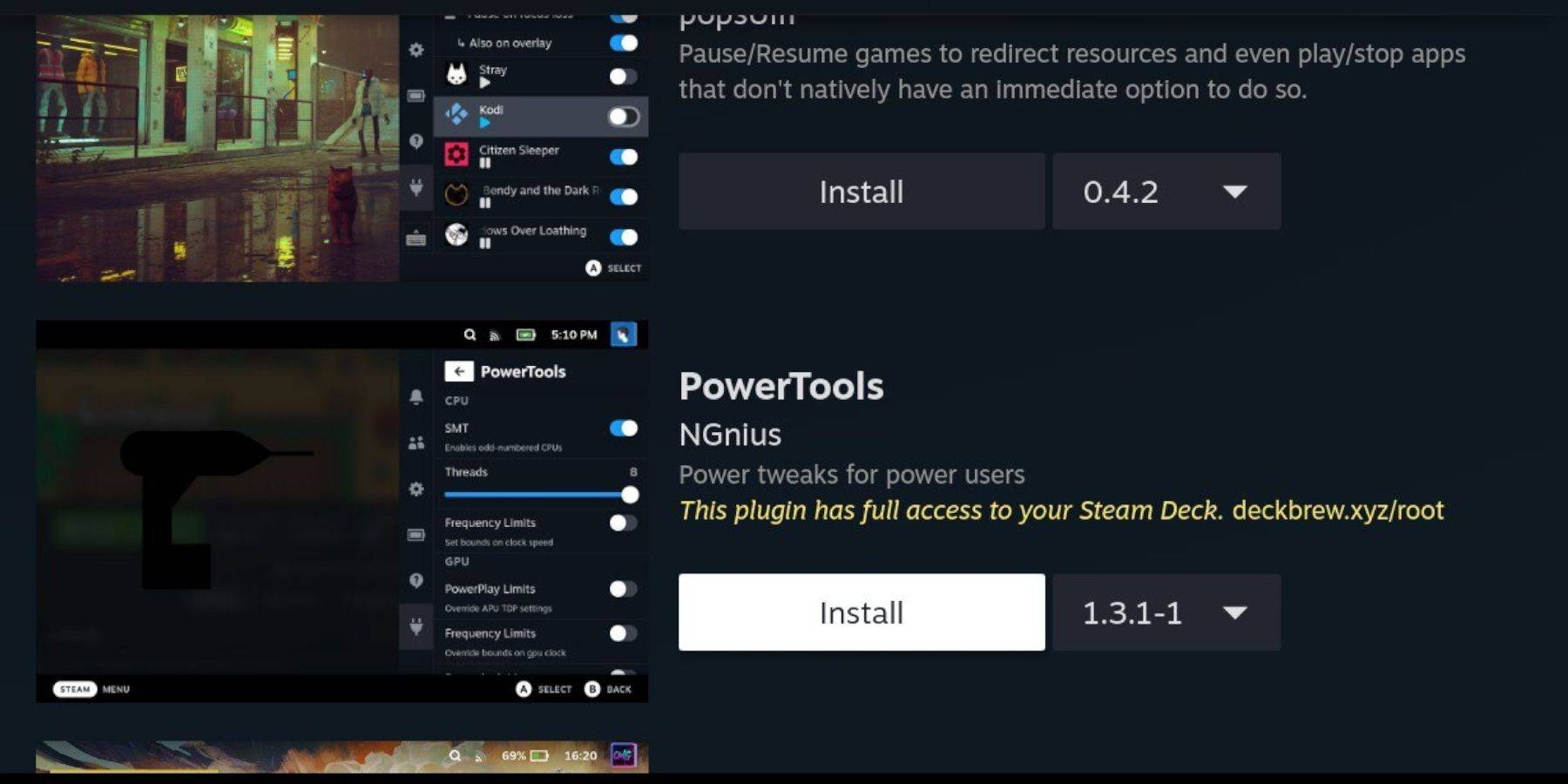
- Access Decky Loader via the Quick Access Menu (QAM).
- Install Power Tools from the Decky Store.
- Launch a Sega CD game.
- Access Power Tools via the QAM.
- Disable SMTs, set Threads to 4.
- Access the Performance menu (battery icon), enable Advanced View, and manually set GPU Clock Frequency to 1200.
- Use "Per Game Profile" to save these settings.
Restoring Decky Loader After a Steam Deck Update:
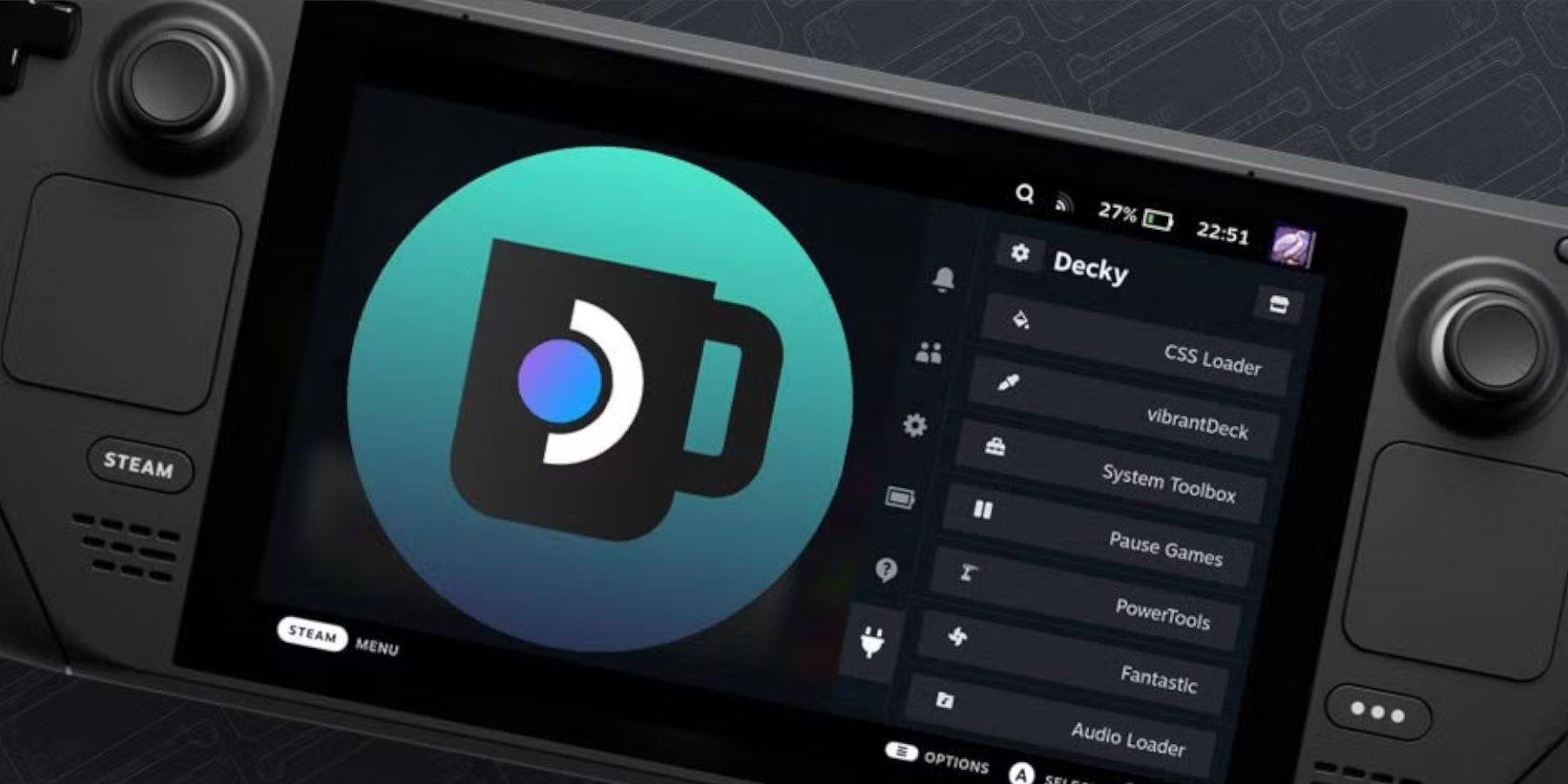
If Decky Loader is removed after an update:
- Switch to Desktop Mode.
- Download Decky Loader from its GitHub page.
- Select "Execute" and provide your sudo password.
- Restart your Steam Deck in Gaming Mode.
Enjoy your Sega CD gaming experience on your Steam Deck!

 Category